Town Hall Meetings
Purpose: Town hall meetings are designed for large-scale, interactive discussions. They are typically used for organizational updates, community engagement, and open forums where participants can ask questions and share feedback.
Audience Interaction: Town hall meetings prioritize audience interaction. Attendees can use features like Q&A, chat, reactions, and hand raises to participate actively. This format fosters a sense of community and encourages open dialogue.
Features:
-
Interactive Tools: Q&A, chat, reactions, hand raises
-
Large Audience Capacity: Can accommodate up to 10,000 participants, with Teams Premium allowing up to 50,0002
-
Green Room: A space for presenters to prepare before the event starts
-
Real-Time Engagement: Attendees can interact directly with presenters and other participants
-
Attendee Reports: See how many people attended, how long they attended, and other insights.
Use Cases: Town hall meetings are ideal for company-wide updates, community forums, and events where active participation is crucial. They are often used by executives to communicate with employees or by organizations to engage with stakeholders.
How to Schedule a Town Hall in Teams
To schedule a town hall:
-
Select Calendar  in Teams.
-
Select the dropdown arrow next to New  .
.
-
Select Town hall  .
.
-
In Details, enter basic info, designate presenters, and more:
-
Enter the event title, start and end date, and description.
Note: The maximum duration of a Town Hall is 30 hours.
-
By default, the Organizer is the person who created the town hall.
-
In Event group > Co-organizers or Presenters from your org, search and select other people who will help manage the town hall. You can also add external presenters.
Note: Co-organizers will have most organizer capabilities but can't change Details (date, time, etc.). Presenters will be able to speak and share content during the event.
- Select Save and send invites
 to apply changes and invite co-organizers and presenters to the event.
- Organizers, co-organizers, presenters, and invited attendees will receive email invites that have dial-in codes for joining by phone. External presenters won't be able to join by phone.
-
In Event access, choose whether your event will be available to Your organization, Public, or People and groups
Permission Types in Microsoft Teams
| Permission Type |
Description |
| Your organization |
Anyone in your org can attend the town hall, including guests. |
| Public |
Anyone who was invited or has a link can join. |
| People and groups |
You may specify individual people or groups to attend the town hall. You may specify up to 500 individual people, and up to 20 groups such as Microsoft 365 mail-enabled security groups, Microsoft 365 groups, and distribution groups. All specified groups must be in the organizer's domain. Dynamic and federated groups aren't supported. |
-
In Invite attendees,search and select people and groups you want to invite.
-
Select Save to apply changes and continue customizing your event.
-
Select Meeting options  toedit more settings.
-
Select Publish to schedule your town hall event and invite attendees.
Add External Presenters
Easily add up to 20 presenters from outside your org to your town hall. External presenters are presenters who are anonymous, outside your org, or don't use Teams.
When you add an external presenter, they'll receive a unique join link that will allow them to enter the event without waiting in the lobby. Anonymous presenters won't need to sign in with a Microsoft account; they can join using the link and type in their name before entering.
To add an external presenter:
-
SelectCalendar in Teams.
-
Select an upcoming town hall.
-
SelectView event  >Manage event
  .
.
-
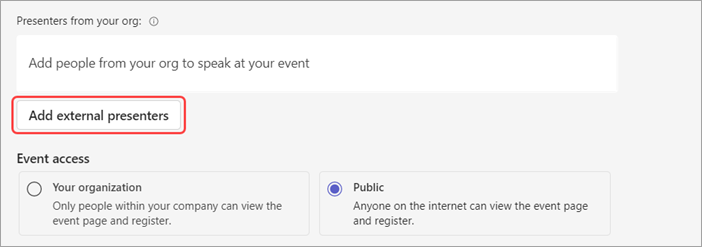
InDetails, select Add external presenters.
-
InExternal presenters, enter the email addresses of the external presenters you want to add.
-
SelectSave and send invites.
To add verification requirements for external presenters before they join your event, or to allow them to join without verification:
- In the event details, select Meeting options>Meeting access
 .
.
- In theVerify external presenters before joining an event dropdown menu, select your preferred verification level.
- SelectApply.
If verification is required, anyone joining from a personal Teams account will be placed in the lobby first.
Note: External presenters shouldn't forward their links. They're able to join using the same link on up to three devices. If a guest hasn't successfully authenticated when joining the event, they'll be placed in the lobby. From there, an event organizer or presenter can approve or deny their request to join the event.
Need More Help?
Connect with PVCC Technology Services:
434.961.5400
help@pvcc.edu
Room M832 in the Main Building (Campus Map)